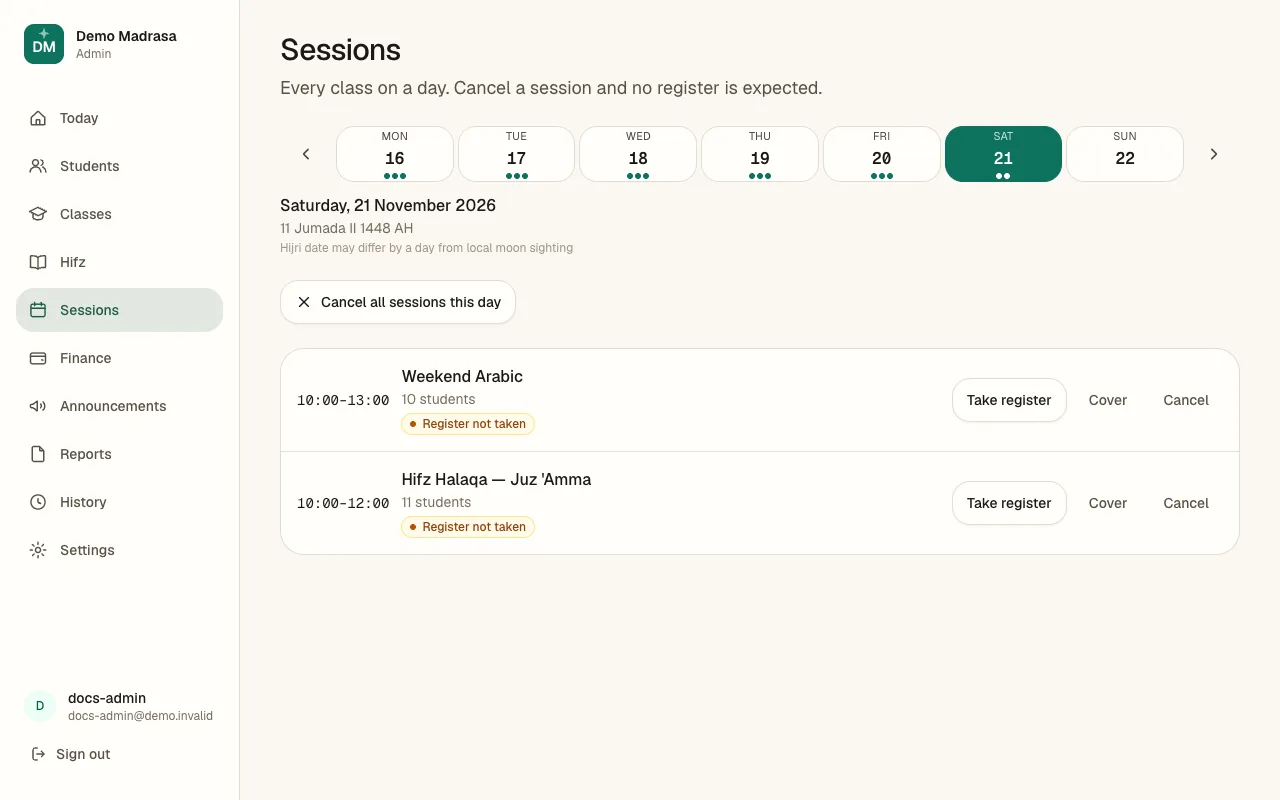
Find today's session
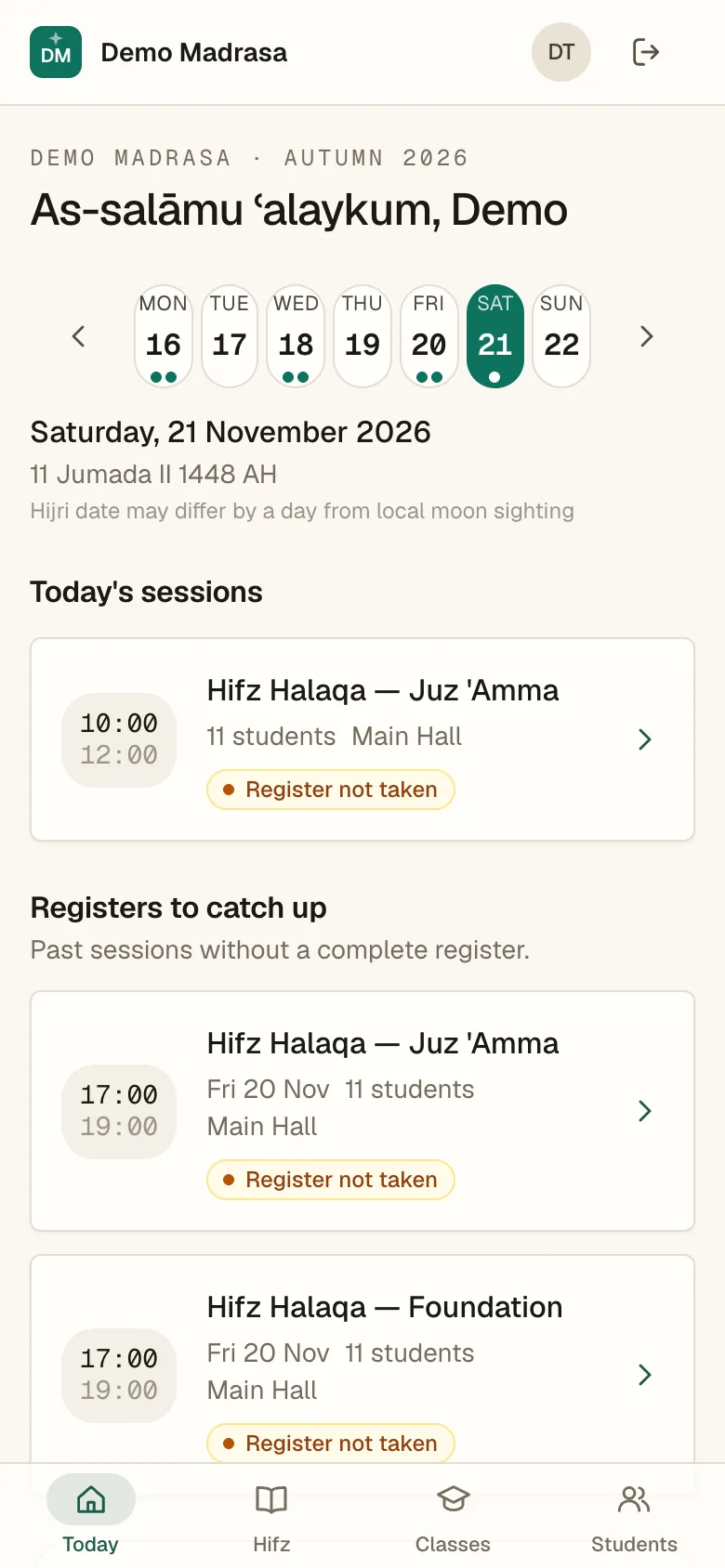
Your home screen lists today's sessions with the room and how many learners to expect. Sessions with no register yet carry an amber Register not taken badge. Tap Take register.
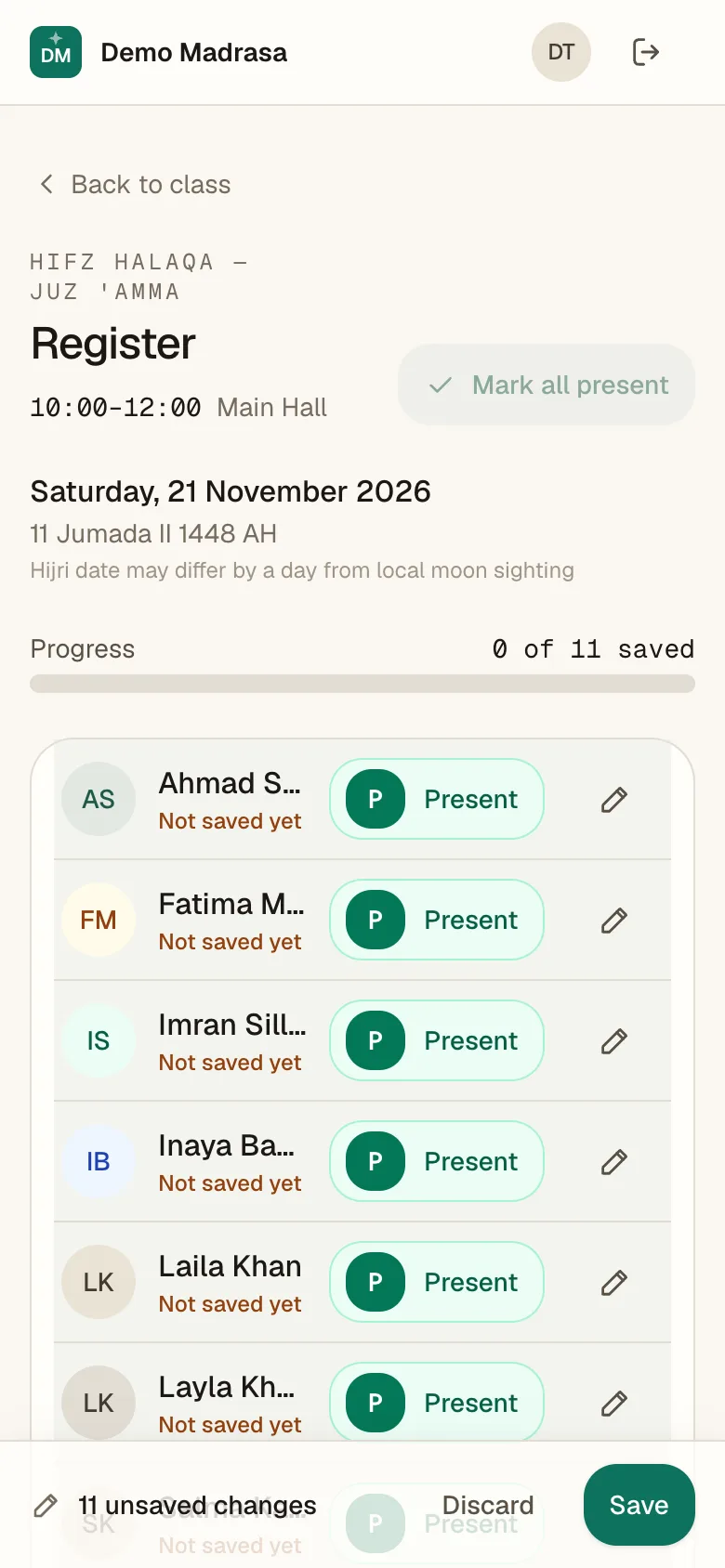
Mark each learner
Everyone starts as present. Tap a learner's mark to change it to late, absent or excused; the save bar counts your changes, and Save sends the register.
Tip
Add a note
Tap the pencil next to a learner to add a short note — left early, unwell, a message for the office. Notes stay on the register and are visible to admins, never to parents.
Catch up a missed register
If a session passed without a register, it appears under Registers to catch up on your home screen. Open it and mark it as normal; the original date is kept.
Cancelled sessions
When the office cancels a session — snow day, Eid falling early — it disappears from Take register and shows as cancelled with the reason. No register is expected and nothing counts against attendance.